UC Consent collects cookie consent from your visitors and records it in a provable way. Open it from My Add-ons → UC Consent; it has two tabs: Settings and Consent Records. This guide walks through every field on the Settings tab in order.
1. General settings: domains and markets
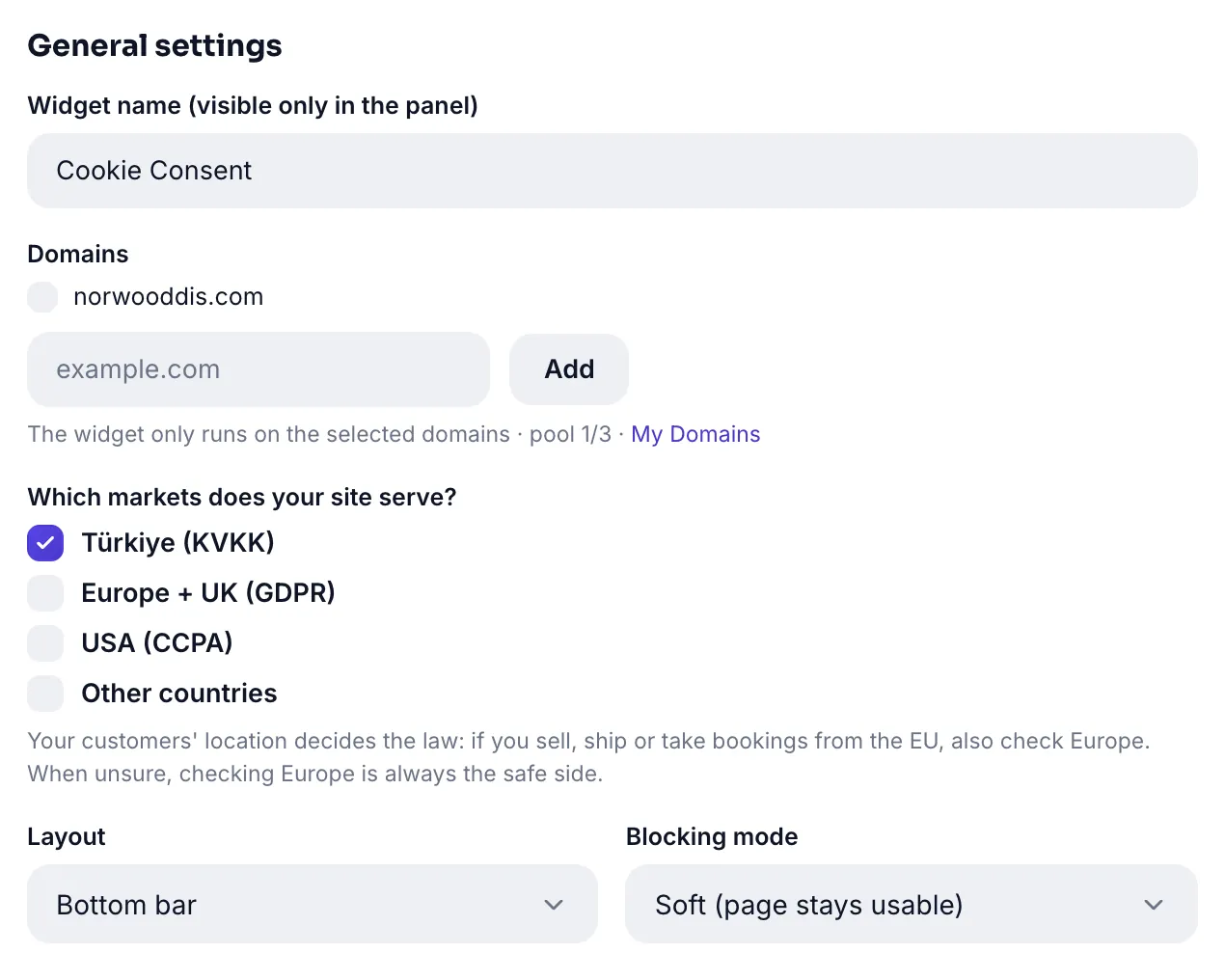
Widget name is panel-only. Domains is a security lock: the banner only opens on the domains you select (1 on the free plan, 3 on Pro). You cannot save without selecting at least one domain.
Which markets does your site serve?
This is the most critical setting: it decides the legal mode. You can tick more than one.
| Market | Mode | What happens |
|---|---|---|
| Turkey (KVKK) | Opt-in | No cookies run before consent; the banner is shown |
| Europe + UK (GDPR) | Opt-in | The same strict mode; mandatory for EU visitors |
| USA (CCPA) | Opt-out | No banner for US visitors, but the preference screen stays reachable |
| Other countries | Notice | Only an informational bar is shown |
Layout and blocking mode
| Setting | Options | Default |
|---|---|---|
| Layout | Bottom bar · Top bar · Corner card · Center modal | Bottom bar |
| Blocking mode | Soft (page usable) · Hard (no browsing without a choice) | Soft |
Hard mode forces a choice; it may lower conversion but offers the highest compliance level. Soft is enough for most sites.
2. Appearance: theme, color and corners
| Setting | Options / behavior | Default |
|---|---|---|
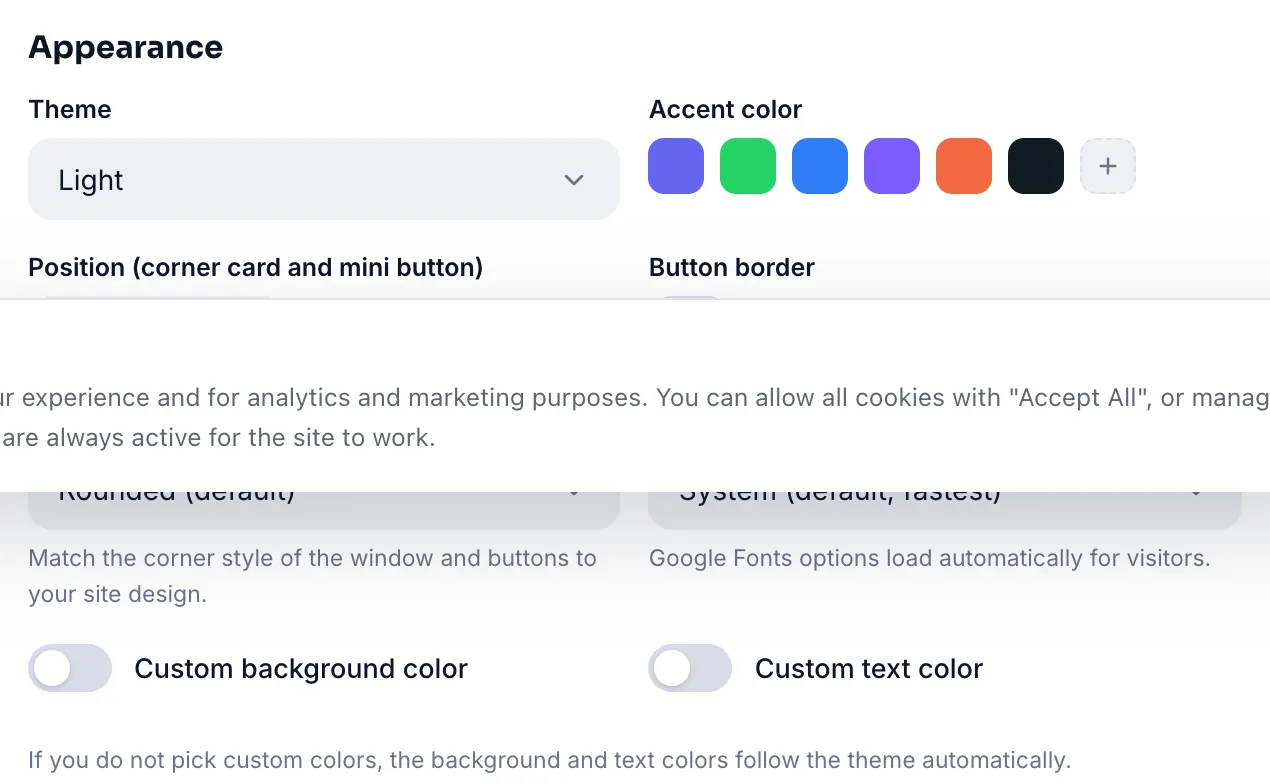
| Theme | Light · Dark | Light |
| Accent color | 6 presets + your own color | Brand purple |
| Position | Left · Right (for the corner card and mini button) | Left |
| Button border | When on, pick thickness (1-4 px) and color | Off |
| Corner radius | Round · Soft · Sharp · Pill buttons | Round |
| Font | System · Site font · Inter · Sora · DM Sans · Poppins · Arial | System |
| Custom background / text color | When on, presets or your own color | Off (from theme) |
3. Texts and policy links
| Field | Limit | Default |
|---|---|---|
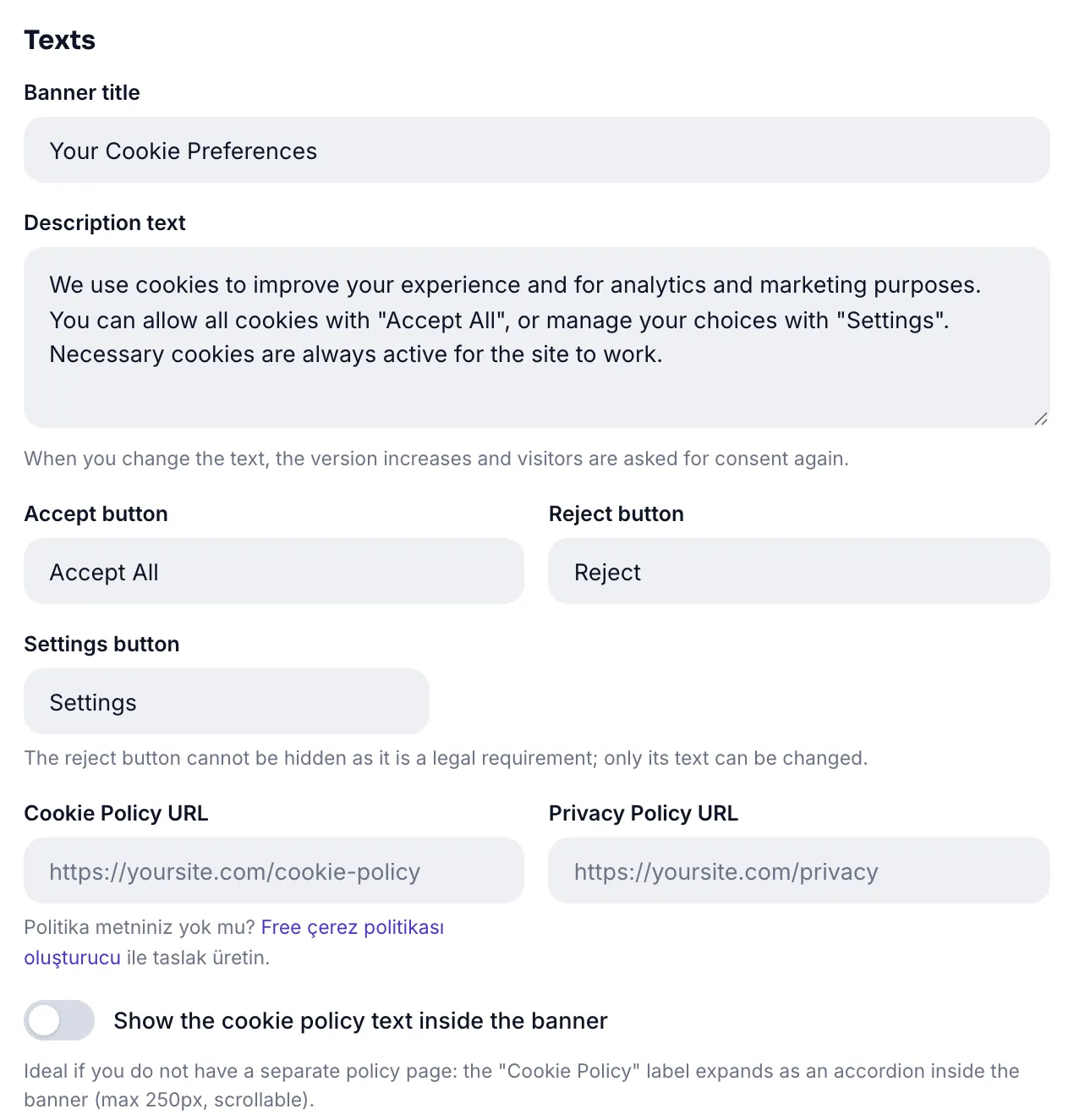
| Banner title | 80 characters | Your Cookie Preferences |
| Description | 600 characters | Ready KVKK-compliant text |
| Accept button | 40 characters | Accept All |
| Reject button | 40 characters | Reject |
| Settings button | 40 characters | Settings |
| Cookie / Privacy policy URL | 300 characters | empty |
If you have no separate policy page, switch on "Show the cookie policy text inside the banner" and write the text right there; it opens as an accordion inside the banner. If you have no text, use our free cookie policy generator.
4. Cookie categories
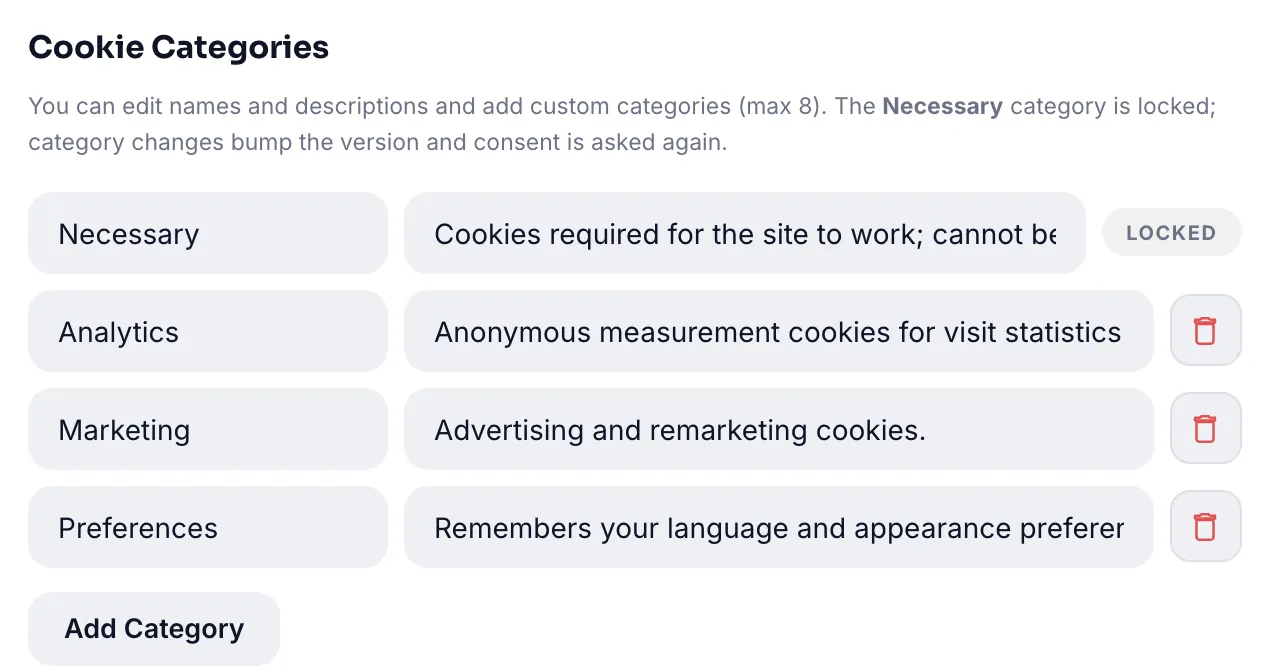
These are the categories the visitor sees in the preference screen. Four ship by default:
| Category | Key | State |
|---|---|---|
| Necessary | necessary | Locked — cannot be deleted or switched off |
| Statistics | stats | Visitor can toggle |
| Marketing | marketing | Visitor can toggle |
| Preferences | prefs | Visitor can toggle |
You can edit names and descriptions and add new ones up to 8 categories. The necessary category always stays first.
5. Script integrations Pro
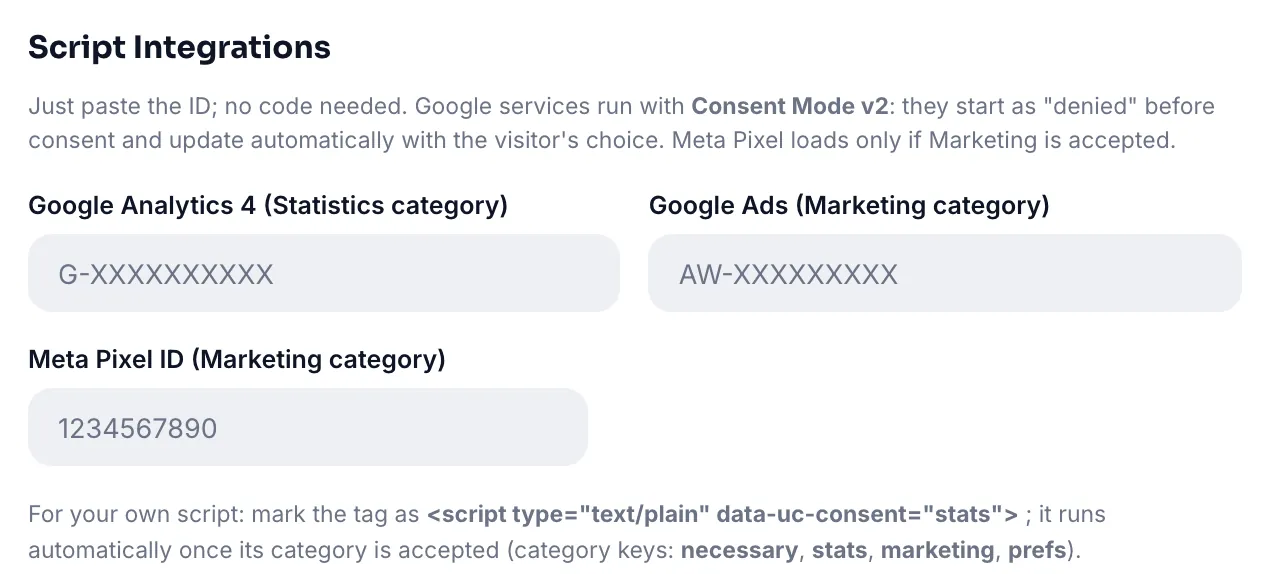
You only paste the ID here; no code needs to go on your site. Without consent, the service is never loaded.
| Service | Format | Bound category |
|---|---|---|
| Google Analytics 4 | G-XXXXXXXXXX | Statistics |
| Google Ads | AW-XXXXXXXXX | Marketing |
| Meta Pixel | numeric ID | Marketing |
Google Consent Mode v2
There is no separate on/off switch: it activates automatically the moment you enter a GA4 or Google Ads ID. Google tags start in the "denied" state on page load and update automatically once the visitor chooses. Meta Pixel loads only if Marketing consent is given.
Your own scripts
You can bind your own code to consent as well. Convert your script tag to this form:
<script type="text/plain" data-uc-consent="stats"> ... </script>The script runs automatically once that category is approved. Available keys: necessary, stats, marketing, prefs.
6. Behavior: mini button and validity
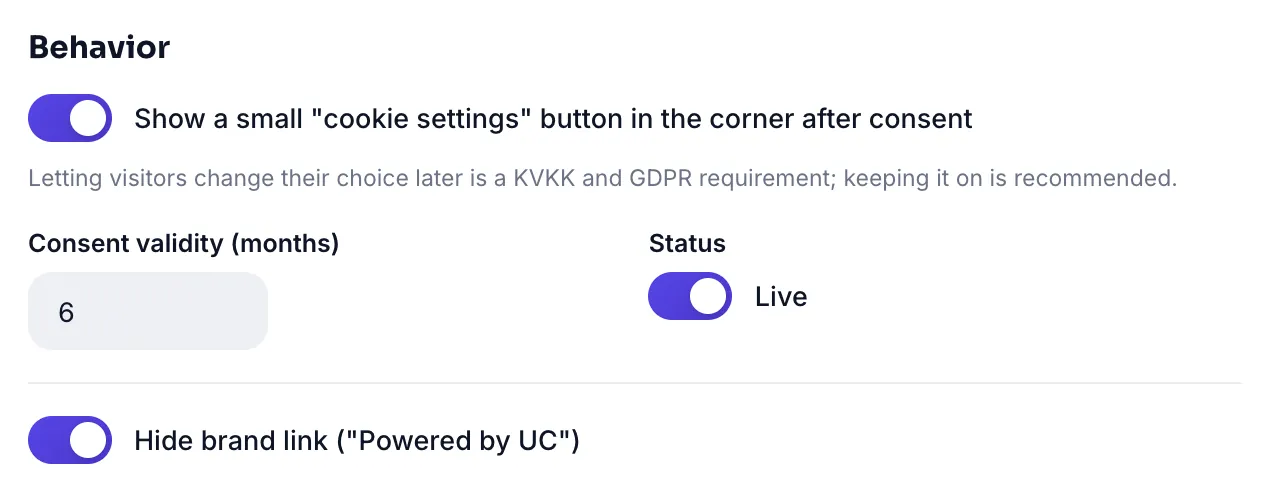
| Setting | Range | Default | Note |
|---|---|---|---|
| Corner "cookie settings" mini button | On / Off | On | Being able to change the choice later is a KVKK and GDPR requirement |
| Consent validity | 1 - 24 months | 6 months | Consent is re-requested when it expires |
| Hide branding link | On / Off | Off | Pro |
7. Install and the preferences link
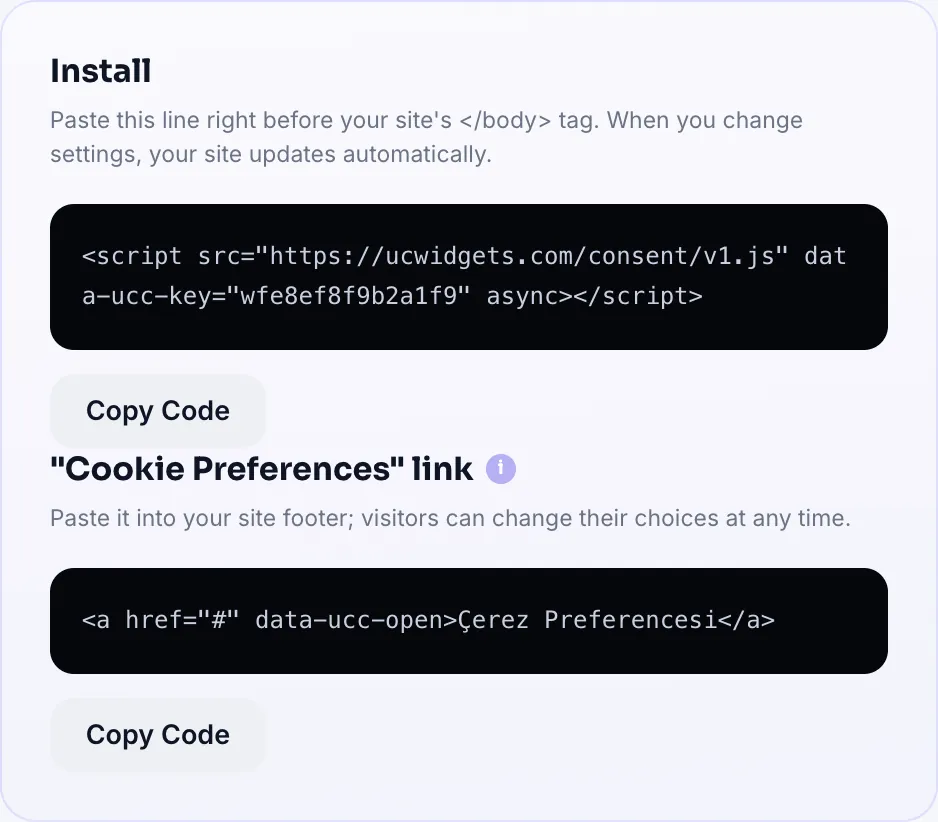
Paste the single line right before your site's </body> tag:
<script src="https://ucwidgets.com/consent/v1.js" data-ucc-key="YOUR-KEY" async></script>The second snippet lets visitors change their choice later. Add it to your footer:
<a href="#" data-ucc-open>Cookie Preferences</a>Withdrawing consent must be as easy as giving it; this link does exactly that.
8. Consent records: proving consent
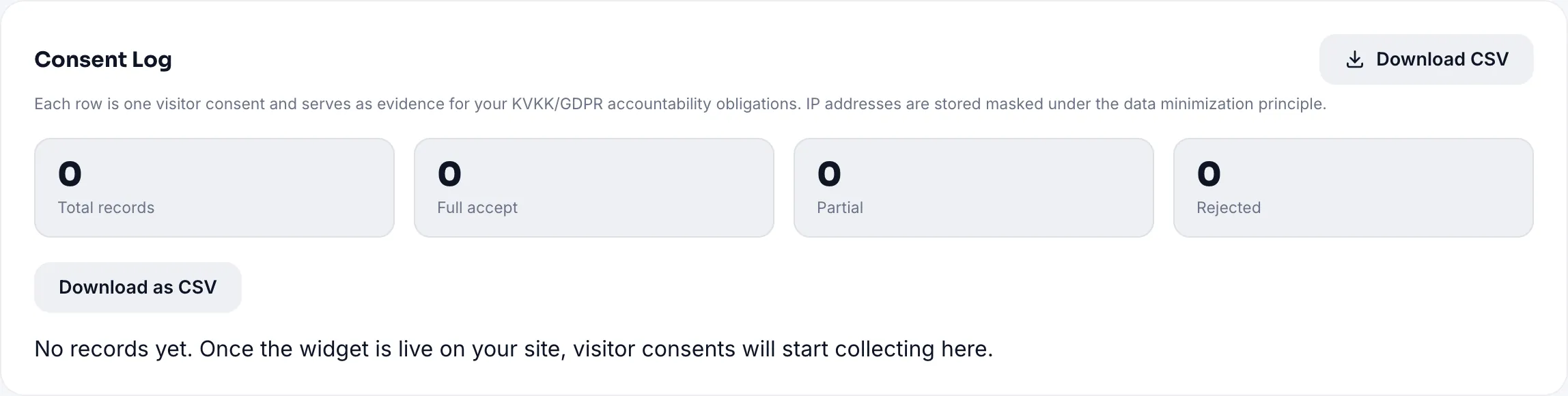
Every visitor consent is stored as a row. KVKK and GDPR require you to be able to prove consent; this table is that evidence. IP addresses are stored masked under the proportionality principle.
| Column | Content |
|---|---|
| Date | When consent was given |
| Version | The text version consented to; it increases when you edit the text |
| IP (masked) | Partially hidden IP |
| Choices | An accept/reject badge per category |
One line of code, live in minutes.
UC ConsentAll Pro features free for 14 days; no credit card, live with a single line of code.
Explore UC Consent