Appointments taken by visitors collect on the Bookings page. This is where you view, approve, reschedule and cancel them, and reach out to customers. Open it from Bookings in the left menu.
1. Summary cards
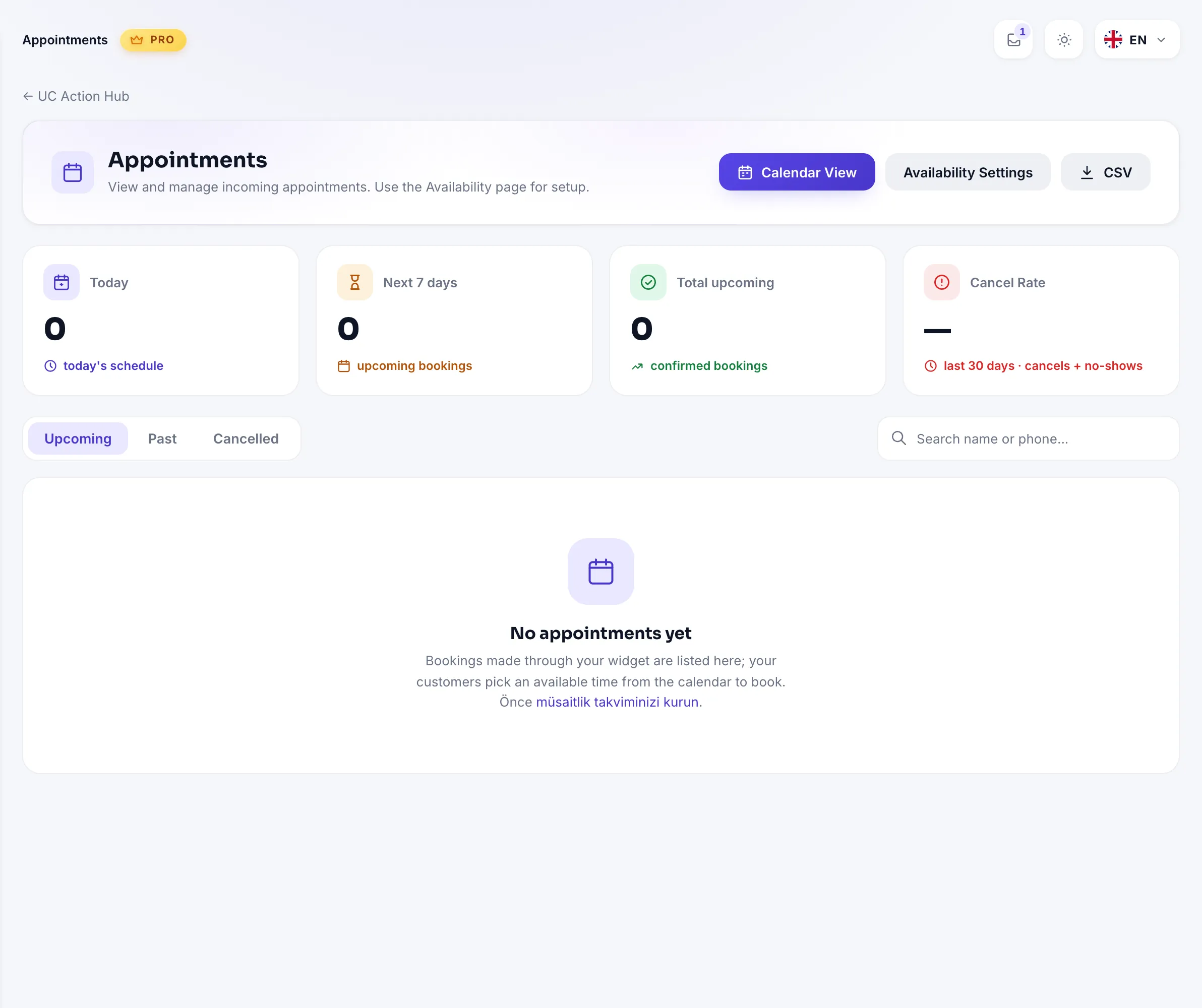
Four cards at the top summarize the situation:
| Card | What it shows |
|---|---|
| Today | Confirmed appointments from now until end of day |
| Next 7 days | A week of upcoming appointments |
| Total upcoming | All confirmed future appointments |
| Cancellation rate | Cancelled + no-show rate over the last 30 days |
2. Tabs and filters
Bookings are split into three tabs:
| Tab | Contents | Order |
|---|---|---|
| Upcoming | Today onward, confirmed appointments | Soonest first |
| Past | Past appointments (including no-shows) | Newest first |
| Cancelled | Cancelled appointments | Newest first |
The filters at the top narrow the list: branch, service and person. These selectors appear only when such records exist. The search box filters by name and phone as you type. When filters are active, Clear filters resets everything in one click.
How the list is grouped
On the Upcoming tab, bookings are grouped for readability: Today, Tomorrow, This week and Later. On Past and Cancelled the groups are monthly ("August 2026").
The table shows date/time, name, phone and, when defined, person, branch and service. Column headers use your terminology: with the health template selected, "Person" reads "Doctor".
3. Booking actions
On the Upcoming tab, the three-dot menu at the end of each row opens the actions:
| Action | What it does | When it appears |
|---|---|---|
| Approve booking | Approves the request and notifies the visitor on their chosen channel | Only in manual approval mode, for unapproved records |
| Edit / Move | Changes the date, time, branch and service | For future appointments |
| WhatsApp reminder | Opens a WhatsApp chat with a prepared message | When a usable phone number exists |
| Cancel booking | Cancels it and frees the slot again | Always |
Approving (manual approval mode)
With manual approval enabled on the Availability page, bookings arrive with a Request badge. When you approve, the visitor receives a "your appointment is confirmed" notice on the channel they picked while booking (email, WhatsApp or Telegram).
Rescheduling
In the panel that slides in from the right you pick a new date, and the time list shows the slots genuinely free on that day. You can also change the branch or service; doing so recalculates the times.
WhatsApp reminder
Opens a WhatsApp chat with a ready message: "Hello [Name], this is a reminder of your appointment at [Business]: [date] at [time]." You can edit the text before sending. It opens in WhatsApp on your own phone; you press send.
Marking a no-show
On the Past tab you mark customers who did not turn up as No-show. The record counts as a no-show in the statistics and feeds the cancellation rate. If you marked it by mistake, the undo button reverses it.
4. Calendar view
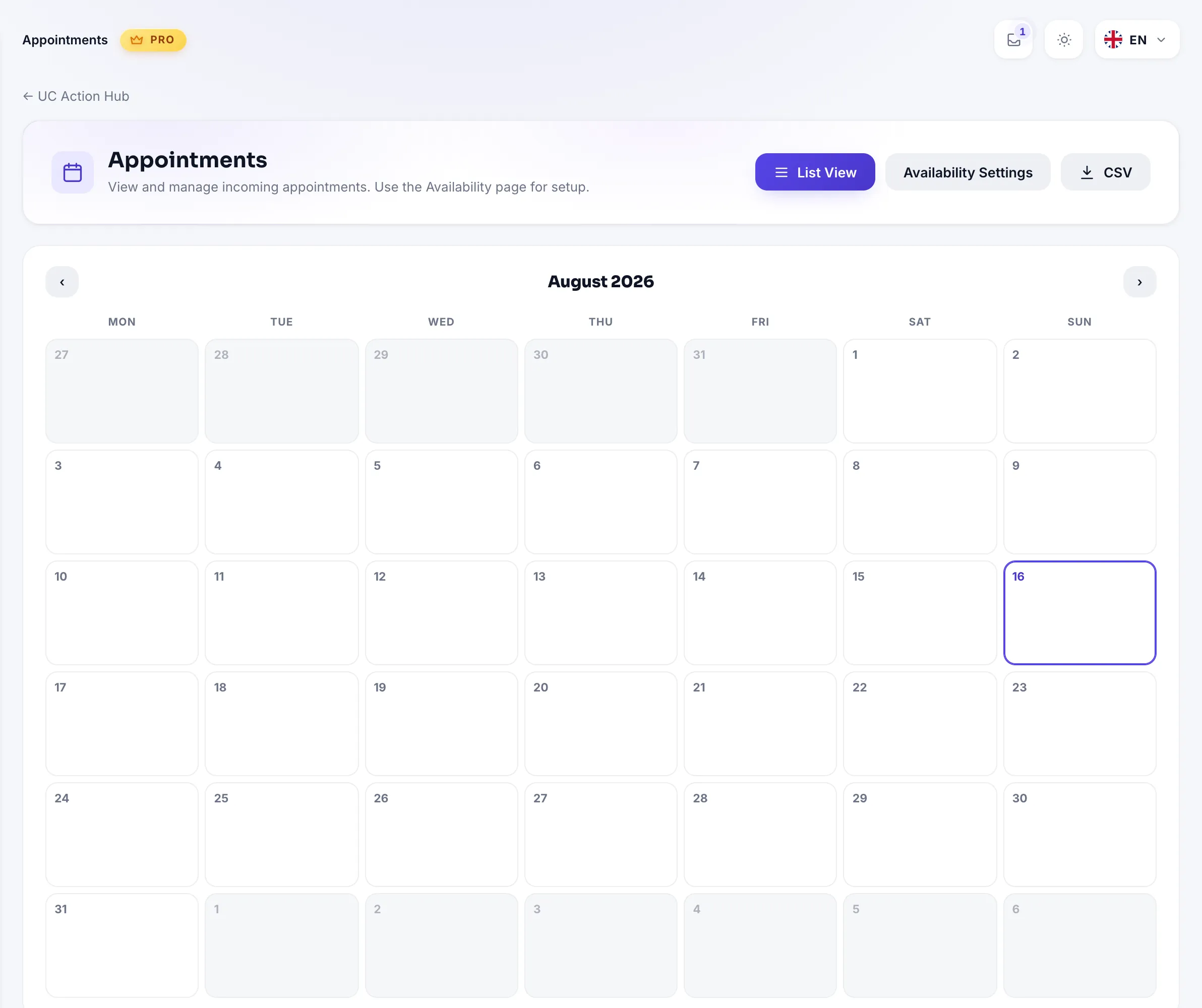
The Calendar View button at the top right switches to a monthly grid. In each day cell, bookings appear as chips with time + name; on busy days a +N more label appears and the cell's menu lists all bookings for that day.
- Clicking a chip opens the detail card: customer name, person, date and time, branch and address, service, phone and note. You can jump straight to WhatsApp, Move and Cancel from there.
- The arrows in the month header navigate between months; filters apply to the calendar too.
- Turkish public holidays are marked on the calendar (New Year, 23 April, 1 May, 19 May, 15 July, 30 August, 29 October and the religious holidays). These marks are informational only and do not block bookings; to actually close them, add a holiday on the Availability page.
- On phones the grid simplifies and the month's bookings are listed day by day underneath.
5. Status badges
| Badge | Meaning |
|---|---|
| Confirmed | The appointment is final |
| Request | Awaiting manual approval; not final yet |
| No-show | The customer was marked as not turning up |
| Cancelled | Cancelled; the slot is open again |
Bookings are never deleted; cancellation is the final state. That keeps your history and statistics intact.
6. CSV export
The CSV button at the top downloads all your bookings. The file works with Turkish Excel (semicolon delimiter, UTF-8). Columns: Start, End, Name, Phone, Email, Note, Status, Created.
Practical tips
- Start the day on the calendar. The monthly view shows the load at a glance; the list is faster for daily operations.
- Watch the cancellation rate weekly. If it rises, revisit reminders and the minimum notice period.
- Prefer rescheduling over cancelling. Moving a customer to a new time beats losing them, for both occupancy and satisfaction.
- Do not skip no-show marking. Unmarked no-shows make the cancellation rate look better than it is.
All Pro features open for 14 days; no card required.
Start FreeAll Pro features free for 14 days; no credit card, live with a single line of code.
Explore UC Action Hub