The Complaint Form gathers dissatisfaction and suggestions in one place and lets you manage them with status tracking. Records land in the panel inbox and you get a notification. This module is Pro.
Why separate from the contact form?
Mixing complaints into the general contact form breaks two things: the urgent item gets lost among ordinary messages, and the customer hesitates over whether they wrote to the right place. A separate heading brings three benefits:
- Right routing: seeing "Complaint" the customer writes without hesitating.
- Reference matching: an order/customer number finds the record instantly.
- Status tracking: follow each record as new / in progress / resolved; nothing is left hanging.
Module settings
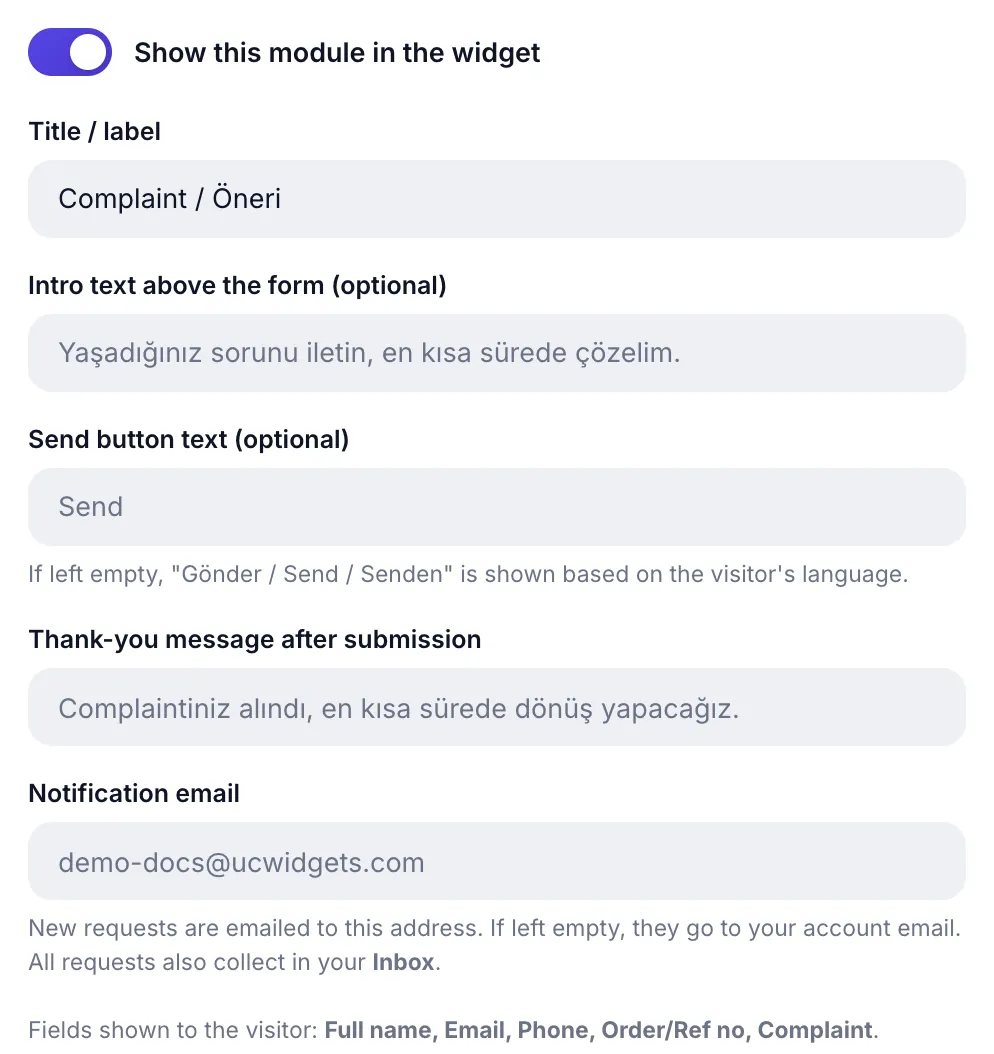
| Field | Limit | What it does |
|---|---|---|
| Intro text above the form | 160 characters | Something like "Tell us the problem and we will fix it quickly." |
| Send button label | 30 characters | Empty means automatic, per the visitor's language |
| Thank-you message | 160 characters | Default: "Your complaint has been received, we will get back to you." |
| Notification email | valid address | Where new-complaint alerts go |
Fields shown to visitors
The fields are fixed and there is one more than in the contact form:
| Field | Note |
|---|---|
| Full name | So you know who to get back to |
| For a written reply | |
| Phone | For calling on urgent matters |
| Order / Reference no | Complaint-specific field: matches the record to your system |
| Complaint | The problem itself |
Complaint flow
- The customer fills the form; a thank-you and a promise to reply appear.
- The record lands in the inbox and is listed with its status.
- A notification email is sent; a fast reply can turn dissatisfaction into satisfaction.
- You update the status: in progress → resolved, so you can track open complaints.
Appearance settings
The Appearance (optional) section at the bottom matches the other modules: icon badge style Pro and four color pickers. Use it if you want the complaint channel to look distinct (a more neutral color, for instance). Details: the Appearance section.
Tips
- Use a separate notification address. Complaints landing in their own inbox are easier to prioritize.
- Give a timeframe in the thank-you message. "We will reply within 24 hours" reduces the chance the customer writes again.
- Reply before closing. Marking a record "resolved" is not enough; tell the customer the outcome.
All Pro modules open for 14 days.
Start FreeAll Pro features free for 14 days; no credit card, live with a single line of code.
Explore UC Action Hub