The booking module learns when appointments can be taken from the Availability page. Your working hours, holidays, branches, services and bookable people are defined here. Open it from Booking module → Availability Settings or Bookings → Availability Settings.
The page has four tabs: Schedule · Branches · Services · People.
1. Slot settings
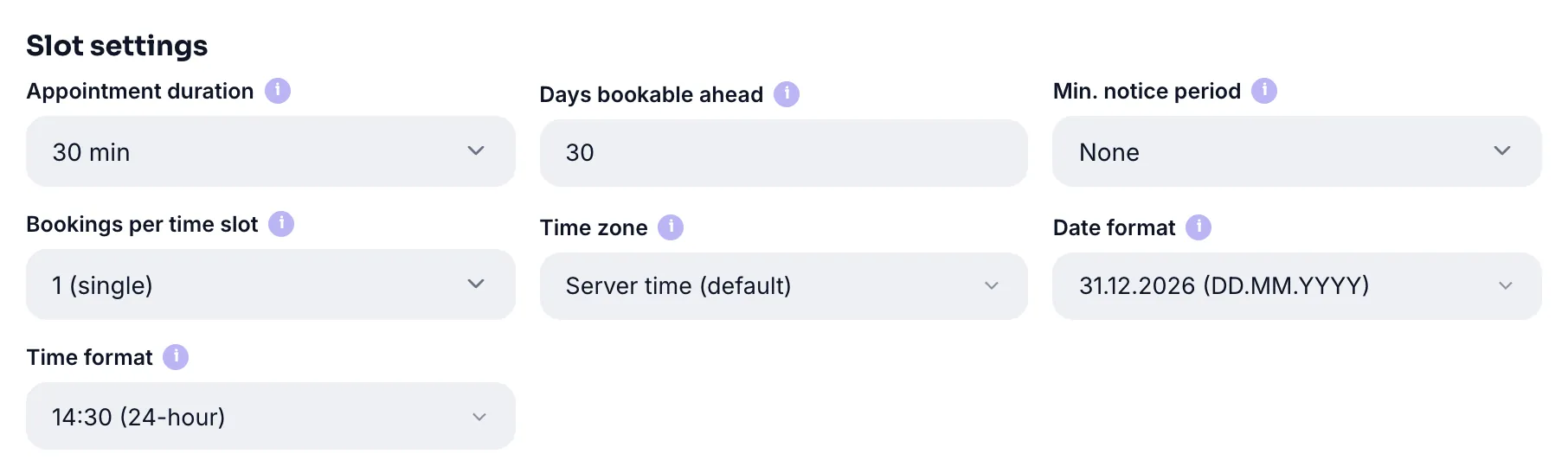
| Setting | Options / range | Default | What it does |
|---|---|---|---|
| Appointment length | 15 · 20 · 30 · 45 · 60 · 90 · 120 min | 30 min | How long one appointment takes. If you define services, the length comes from the service itself |
| Days ahead | 1 - 120 days | 30 days | How far into the future visitors can book |
| Minimum notice | None · 1 hour · 3 hours · 12 hours · 1 day | None | Blocks last-minute bookings |
| Bookings per slot | 1 - 20 | 1 (single) | Slot capacity; for group classes, multiple chairs and similar |
| Time zone | Server time + world list | Server time | Calendar and slots are computed in this zone |
| Date format | 31.12.2026 · 12/31/2026 · 2026-12-31 | DD.MM.YYYY | The date format shown to visitors |
| Time format | 24-hour · 12-hour (AM/PM) | 24-hour | The time format shown to visitors |
Minimum notice example: with 3 hours selected, a 14:00 appointment can be booked until 11:00 at the latest. The rule applies to visitors only; it is waived when you reschedule from the panel.
2. Appointment reminders

There are two reminder switches and both are on by default:
- Remind 24 hours before — a day's notice lets a cancelling customer free the slot in time.
- Remind 2 hours before — reduces forgetting and no-shows.
The reminder goes out through the channel the visitor chose while booking: email, WhatsApp or Telegram. If you move an appointment, reminders are automatically re-armed for the new date.
3. Approval mode

| Mode | What happens | Who it suits |
|---|---|---|
| Automatic (default) | The booking is confirmed instantly and the visitor gets a confirmation | Most businesses running on availability alone |
| Manual approval | The booking arrives as a request; the visitor is notified once you approve | Those who want to vet every appointment |
In manual mode the visitor sees "Your booking request has been received" and the record is listed with a Request badge. On approval, a "your appointment is confirmed" notice goes out through their chosen channel.
4. Person selection

Show the "No preference" option (on by default): the visitor can continue without picking anyone at the person step. Turning it off forces a choice. If you do not need to route people to a specific expert, leaving it on lifts conversion.
5. Terminology: your sector's language
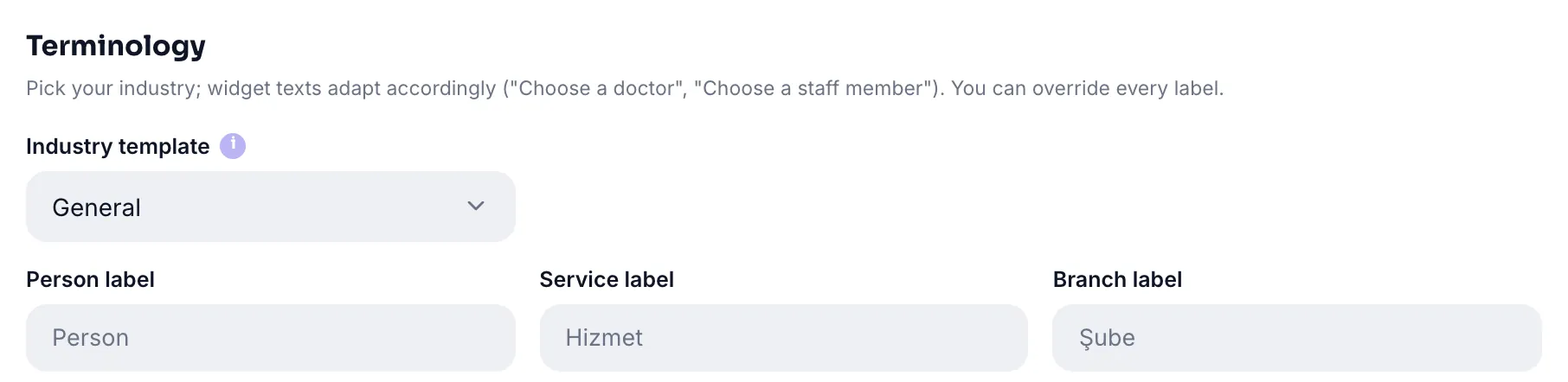
The widget speaks in your sector's terms. Choosing a sector template fills in three labels, each of which you can override (up to 40 characters).
| Sector template | Person | Service | Branch |
|---|---|---|---|
| General (default) | Person | Service | Branch |
| Health / Clinic | Doctor | Treatment | Clinic |
| Salon / Beauty | Staff | Service | Salon |
| Consulting | Consultant | Meeting | Office |
| Service / Repair | Technician | Job | Branch |
| Education / Courses | Instructor | Lesson | Campus |
These labels are used not only in the widget but also in the column headers and filters on the panel's booking list.
6. Weekly schedule
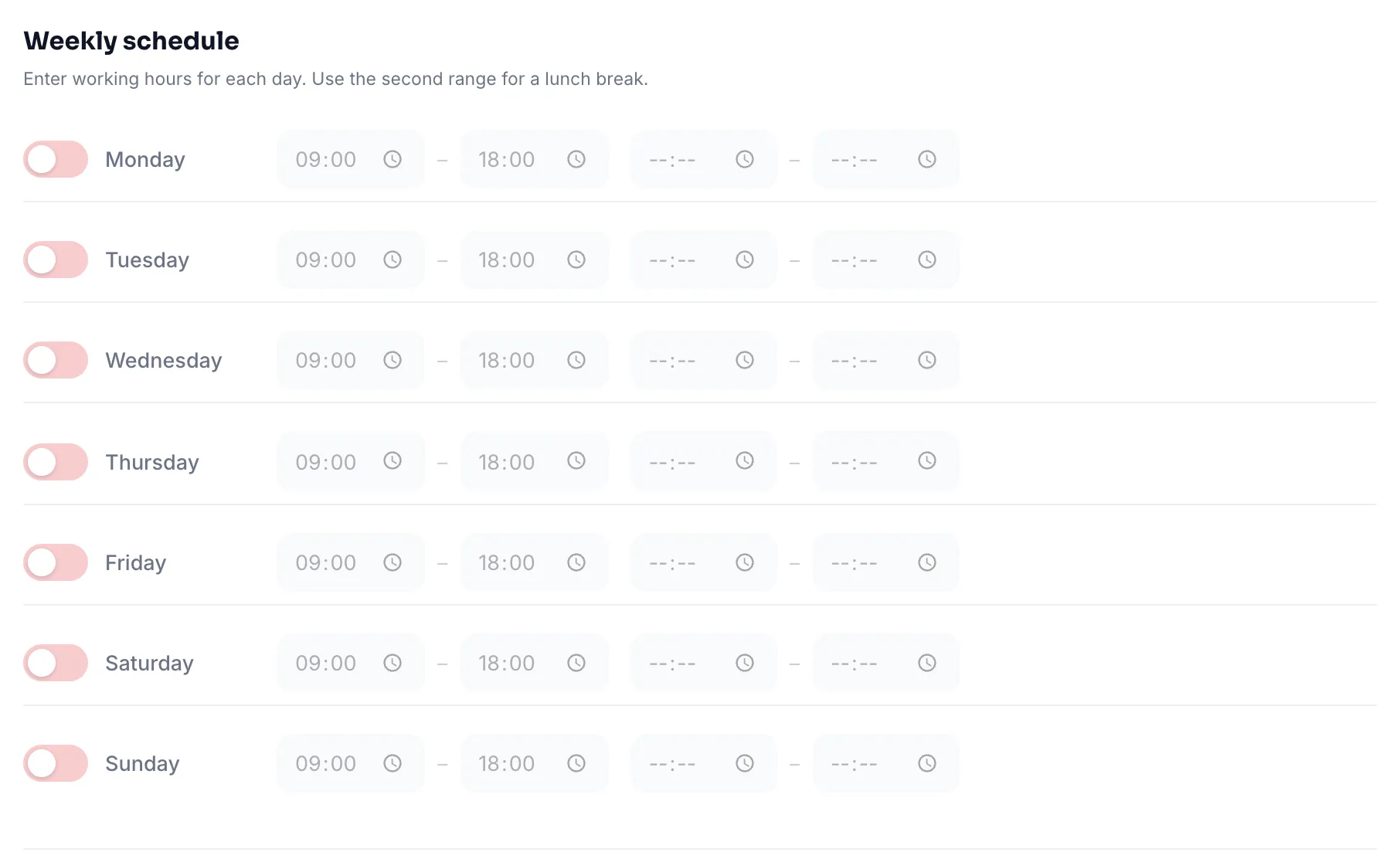
Each day has a switch and two time ranges. The second range is for a lunch break: 09:00-12:30 and 13:30-18:00, for instance. A day with its switch off is fully closed.
- Switch on the days you work. On a fresh setup the hours come prefilled as 09:00-18:00.
- Adjust the ranges. If you take a lunch break, fill in the second range.
- Save the schedule. Saving publishes the calendar immediately.
7. Holidays and closed days
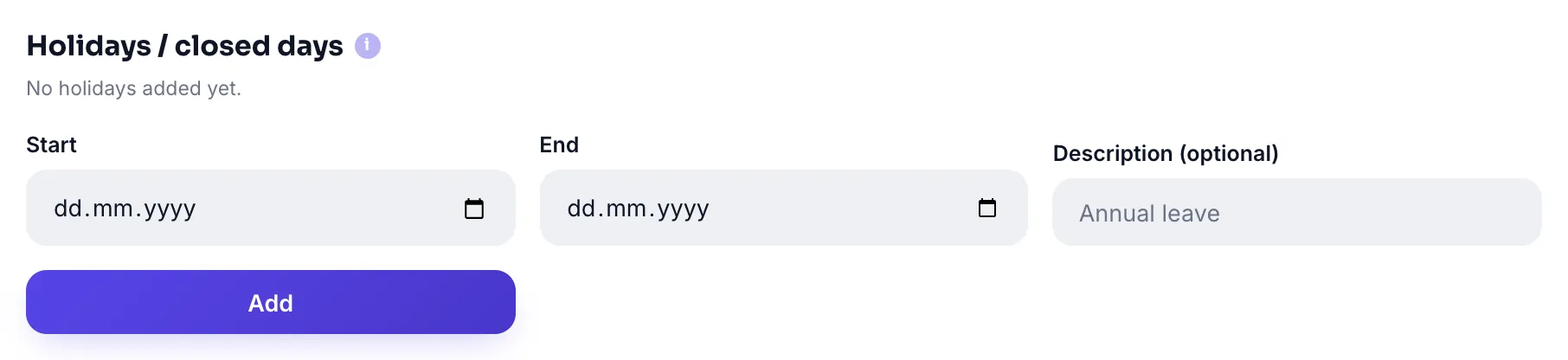
Closes the calendar during annual leave, public holidays or renovation. It has four fields:
| Field | Value | Note |
|---|---|---|
| Scope | Whole business · a specific branch · a specific person | Visible when branches or people exist |
| Start | date | Required |
| End | date | Required; swapped automatically if reversed |
| Reason | 160 characters | Optional: "Annual leave" |
Scope is a powerful distinction: you can close the whole business, put a single branch on holiday, or close one person's calendar. A person's holiday does not affect the others.
8. Branches
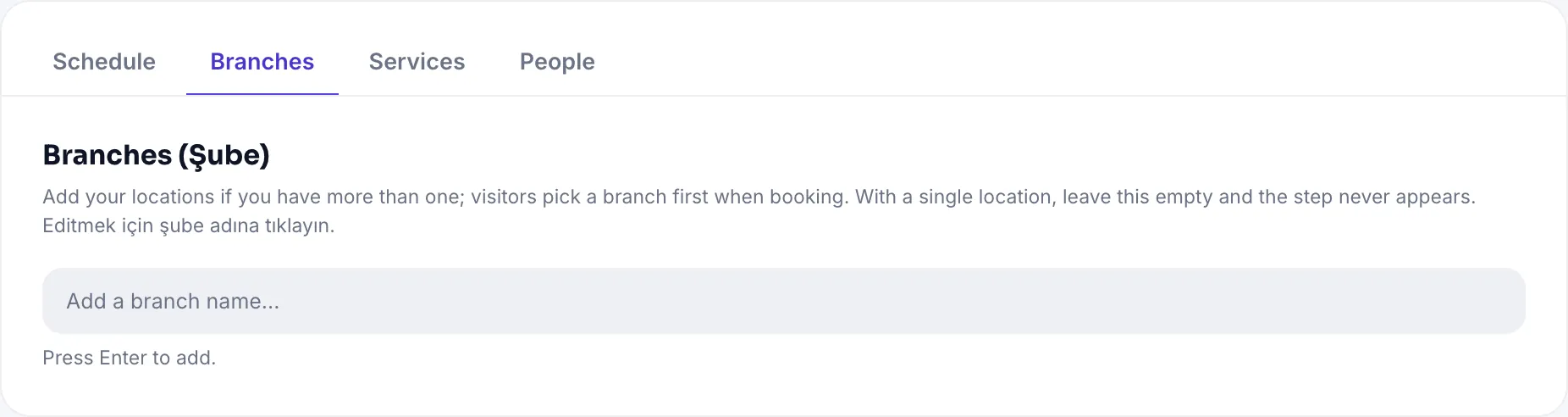
Add them if you have multiple locations; the visitor picks a branch first. With a single location, leave it empty and the step never appears in the widget.
| Field | Limit |
|---|---|
| Branch name | 160 characters · required |
| Address | 300 characters · optional |
| Phone | 40 characters · optional |
9. Services
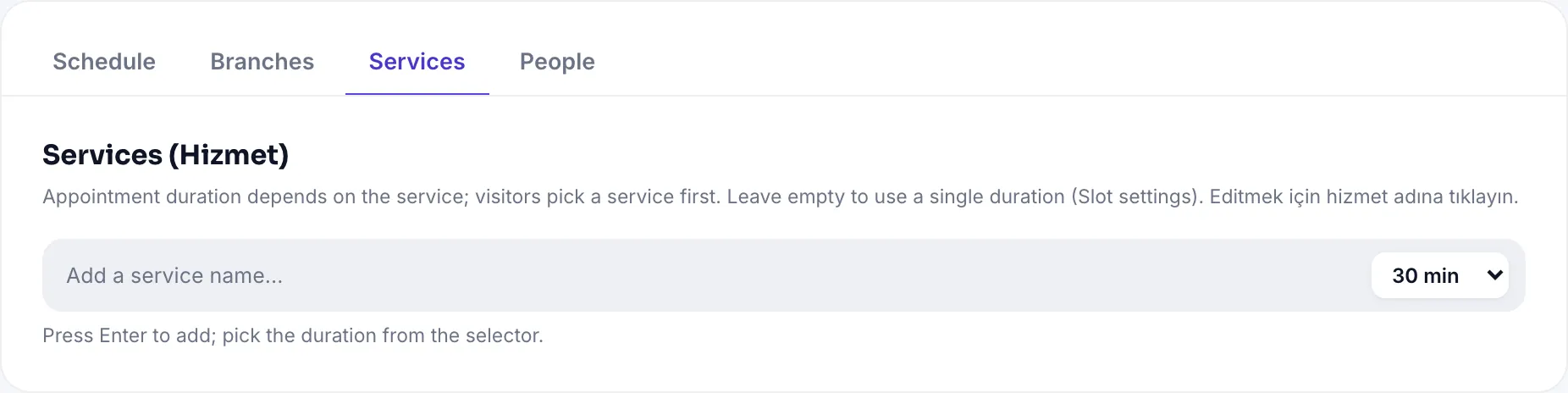
If you define services, the appointment length follows the service and the visitor picks a service first. Left empty, the single length from Slot settings is used.
| Field | Value |
|---|---|
| Service name | 160 characters · required |
| Duration | 15 · 20 · 30 · 45 · 60 · 90 · 120 min |
For example: "Check-up 15 min", "Filling 45 min", "Implant consultation 60 min". Once the visitor picks a service, the calendar shows slots of that length.
10. People
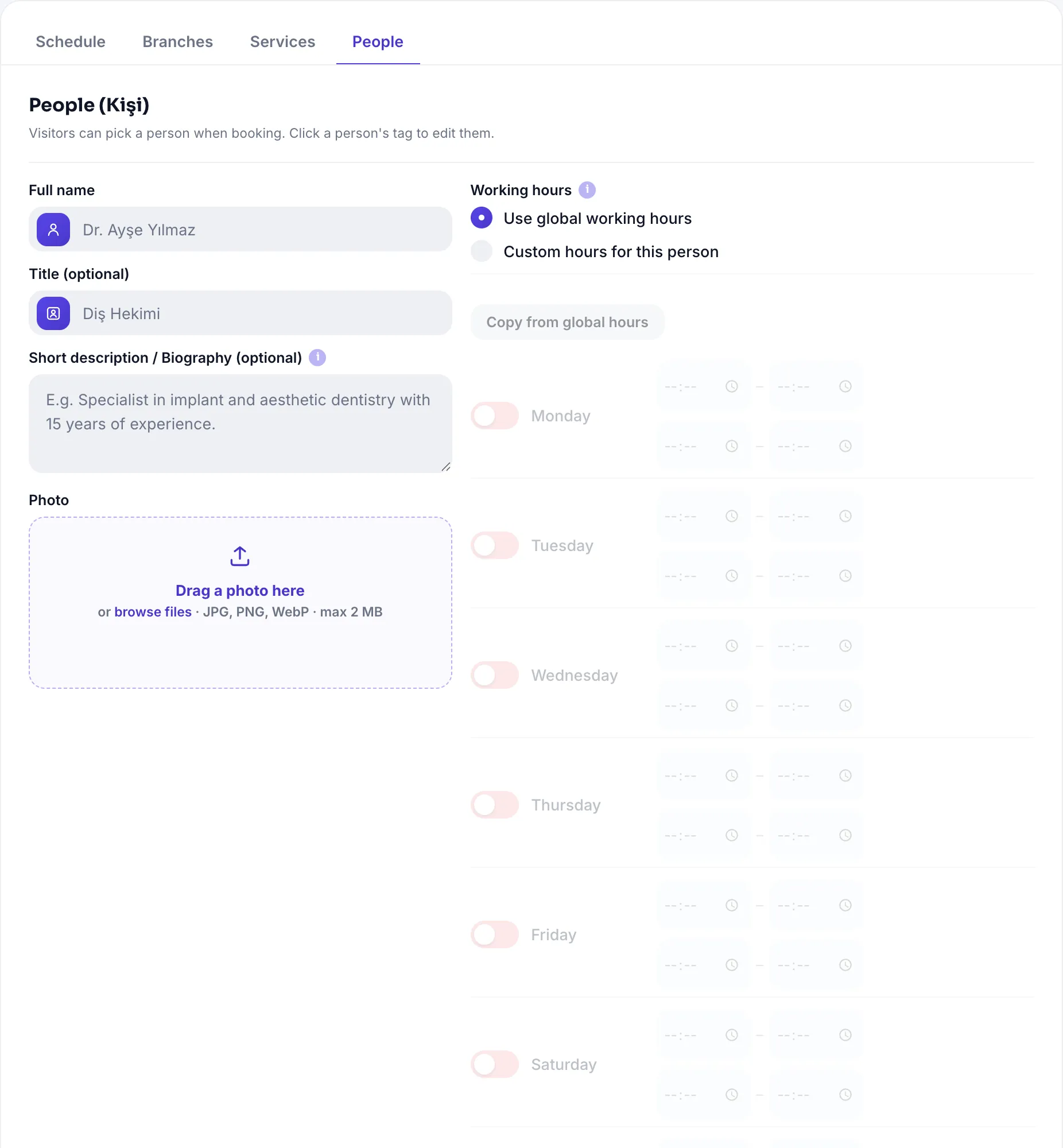
This is where you define the people who can be booked (doctor, consultant, technician, instructor). Visitors can pick a person, or continue without one if "No preference" is on.
| Field | Limit | What it does |
|---|---|---|
| Full name | 160 characters · required | The name shown in the list |
| Title | 120 characters | "Dentist", "Senior Consultant" |
| Branch | All or one branch | With "All" they appear whichever branch is chosen |
| Services offered | multi-select | If none are ticked they offer all services |
| Short bio | 1000 characters | Expertise and experience |
| Photo | 2 MB · JPG/PNG/WebP | The portrait on the card |
Ordering: drag the person cards to reorder them; the widget lists them in that order. With many people, the search box at the top filters the list.
Person-specific working hours
Each person's calendar is set one of two ways:
| Mode | Behavior |
|---|---|
| Use global working hours (default) | Follows the business weekly schedule |
| Custom hours for this person | Their own weekly schedule, independent of the global one |
The Copy from global hours button pours the business schedule into the person's grid; for small differences, copying and editing beats filling it from scratch.
Setup summary
- Set the slot settings: length, days ahead, time zone.
- Fill in the weekly schedule and save — without it the calendar is empty.
- Choose the sector template so the widget speaks your language.
- Add branches, services and people if you have them; otherwise those steps never appear to visitors.
- Enter holidays and check the reminders.
- Turn on the booking module and take a test appointment end to end from the widget.
Define your availability and let visitors book themselves.
Booking SystemAll Pro features free for 14 days; no credit card, live with a single line of code.
Explore UC Action Hub